
Keeping a Laptop Running Well for Years: Practical Maintenance Habits
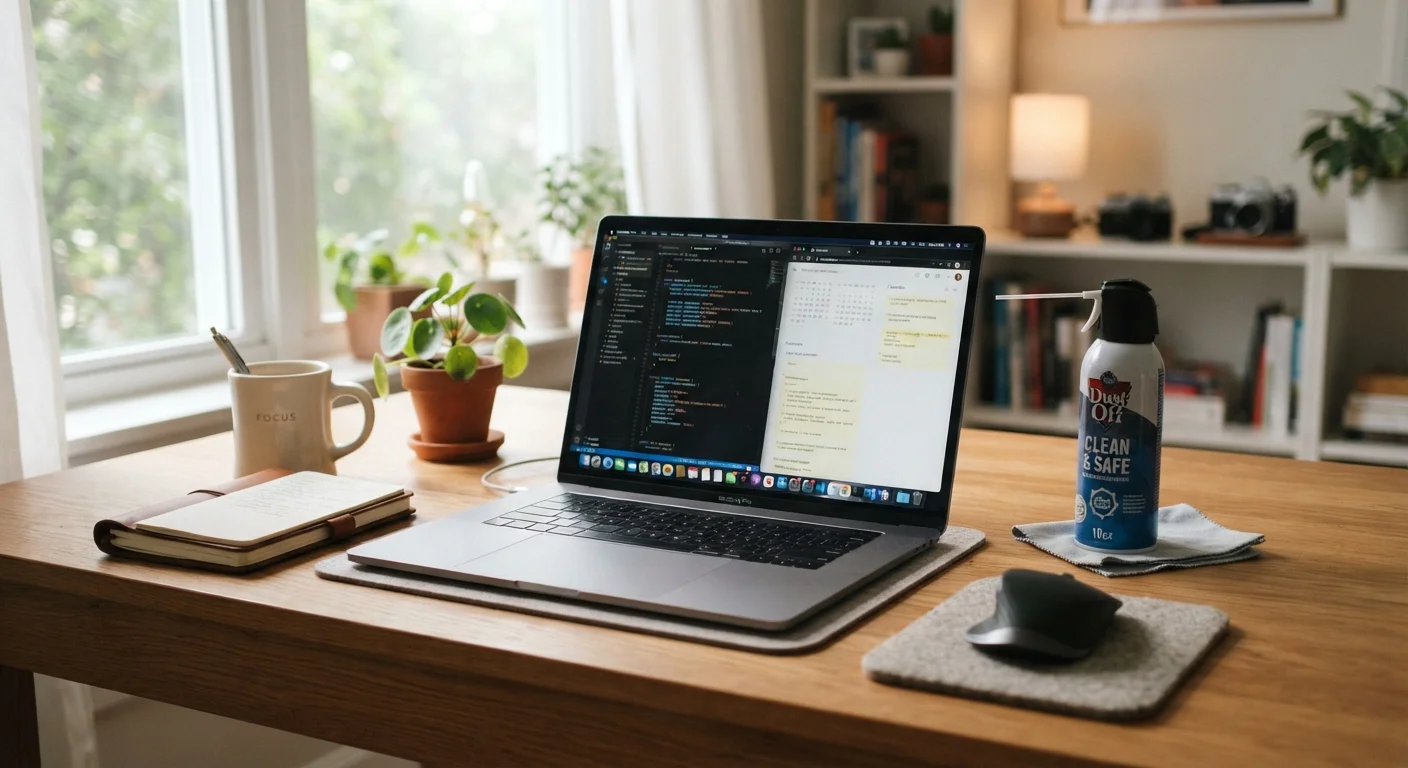
Photo credit: TrendingExperts.net
In this article
Ventilation, software updates, storage management — the maintenance habits that help laptops stay reliable well past their first few years.
Key Takeaways
- Heat is a laptop's biggest enemy - keeping vents clear prevents long-term hardware damage.
- Regular software updates close security gaps and keep the system running efficiently.
- Managing storage proactively stops slowdowns before they become serious performance problems.
- Battery longevity depends on charging habits more than most people realize.
- A few minutes of routine care each month can extend a laptop's useful life significantly.
Why Maintenance Habits Matter More Than Specs
When a laptop slows down after two or three years, most people assume it's simply too old. In many cases, the hardware is fine - what's suffered is upkeep. A laptop that receives consistent basic care routinely outlasts one with better specs but no attention. Think of it the way car owners think about oil changes: routine maintenance isn't glamorous, but skipping it creates costs that dwarf the effort of staying current.
The good news is that laptop maintenance requires no special tools and very little time. The habits below are practical, low-effort, and proven to make a real difference over a device's lifespan.
Keep vents clear and clean them every two to three months.
Dust buildup inside a laptop restricts airflow and forces the processor to throttle its speed to avoid overheating, causing slowdowns and potentially shortening hardware life. Heat is the most consistent cause of premature component failure in consumer laptops.
Install operating system and application updates promptly.
Updates do two important things: they patch security vulnerabilities that attackers exploit, and they often include performance and stability improvements. Postponing updates indefinitely leaves the device exposed and can cause compatibility problems with newer software.
Keep at least 10-15% of your storage drive free at all times.
When a drive - especially a traditional hard disk drive (HDD) - runs low on space, the operating system struggles to perform routine tasks like writing temporary files and managing memory. Even solid-state drives (SSDs) slow down and wear faster when consistently near capacity.
Restart your laptop at least once a week.
Modern operating systems are designed to apply updates, clear memory leaks, and reset background processes during a full restart. Laptops that stay in sleep mode for weeks accumulate system clutter that gradually degrades responsiveness.
Avoid charging to 100% and draining to 0% habitually.
Lithium-ion batteries - the type in virtually all modern laptops - degrade faster when repeatedly charged to full capacity or run down completely. Keeping the charge between roughly 20% and 80% helps preserve total battery capacity over time.
Quick Actions You Can Take Today
You don't need to overhaul your habits all at once. A few targeted actions this week will put your laptop in significantly better shape going forward.
Tracking Your Habits Over Time
One underrated strategy is keeping a simple log of when you've cleaned vents, run updates, or cleared storage. It sounds like extra work, but a quick note in a calendar or notes app takes seconds and removes the guesswork of "when did I last do this?" The same principle applies to vehicles - as any maintenance log guide will tell you, a documented record helps you stay consistent and catch patterns before they become problems.
Battery health is one area where habits quietly accumulate. Charging behavior matters more than most users expect - for a deeper look at what the evidence says, see our guide to charging habits that affect device lifespan. If you're also weighing whether a laptop still fits your needs, understanding the real trade-offs between laptops and tablets can help you make that call with clarity.
When to Seek Professional Help
If your laptop is overheating despite clean vents, shutting down unexpectedly, or showing significant slowdowns after a full reset and storage cleanup, the issue may be hardware-related. A qualified repair technician can diagnose failing components like thermal paste, fans, or aging drives. Attempting to open a laptop yourself can void warranties and cause damage - check your warranty status before any internal repairs.
Consistent maintenance doesn't guarantee a laptop will last forever, but it dramatically improves the odds of getting full value from your investment - and reduces the chance of an unexpected, costly failure at the worst possible moment.

Author
Technology Editorial Team
Technology Editorial Team is the collective byline for our editorial team and contributor network. Articles published under this byline or an editorial pen name are researched, written, and reviewed according to our editorial standards for clarity, consistency, and independence before publication.
View all articles →