
Your Phone's App Permissions Are Asking for More Than You Think
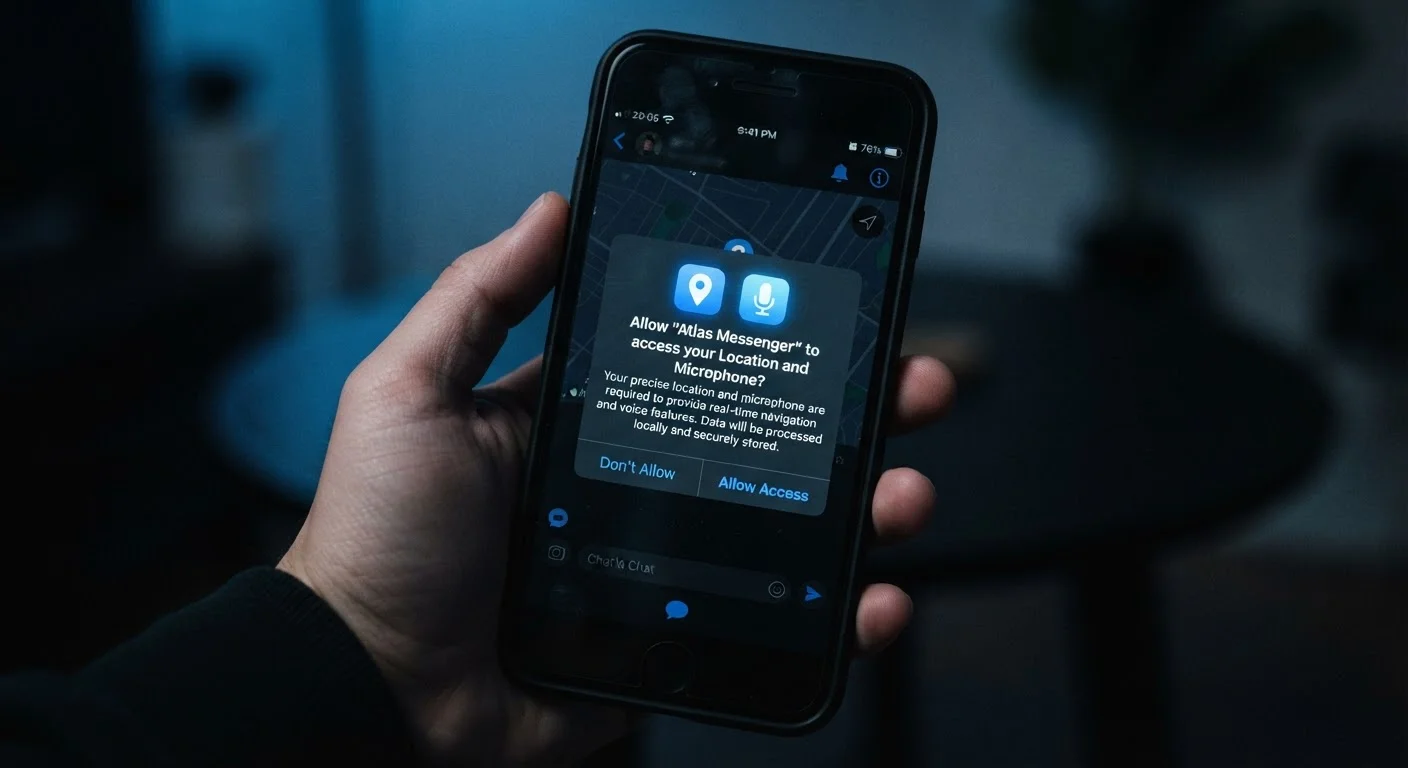
Photo credit: TrendingExperts.net
In this article
App permissions can be confusing. Here's what each common permission actually grants an app — and how to decide what's worth allowing.
What App Permissions Actually Mean
When you install an app and a box pops up asking to access your camera, contacts, or location, that's an app permission request - a formal ask for access to a specific part of your phone's hardware or data. Most people tap "Allow" instinctively, but each permission opens a real door.
Permissions are grouped by what they can reach. Some are low-risk; others hand over sensitive personal data. Understanding the difference helps you make smarter decisions without overthinking every install. Think of it as reading the terms before you sign - except shorter and more useful.
Both Android and iOS require apps to request permissions explicitly for sensitive resources. You can usually grant, deny, or limit access (for example, allowing location "only while using the app" rather than always). If you'd like to understand more about how apps differ from websites under the hood, see how apps and websites behave differently.
| Permission review location (iPhone) | Settings → Privacy & Security (Apple iOS documentation) |
| Permission review location (Android) | Settings → Privacy → Permission Manager (Android developer documentation) |
| Location access options | Always, While Using App, or Never (Available on both iOS and Android) |
| Can permissions be changed after install? | Yes - at any time in phone settings |
| Risk level: Contacts permission | High - exposes third-party personal data |
| Risk level: Notifications permission | Low - affects alerts only, not data |
Common Permissions Decoded
Here's what the permissions you encounter most often actually grant - and when that access is reasonable versus worth questioning.
Location
Grants access to your phone's GPS and network-based positioning. Apps can use this while you're actively in the app, or continuously in the background. Background location is much more privacy-sensitive.
Camera
Allows the app to activate your phone's camera and capture photos or video. Reasonable for apps that need to scan, photograph, or video chat - less so for apps where images play no role.
Microphone
Lets the app listen through your phone's microphone. Necessary for voice calls, voice search, or audio recording features. Should be off for apps that have no audio function.
Contacts
Provides access to your full address book, including names, phone numbers, and emails. Often used for social or communication apps to suggest connections, but can expose other people's data without their consent.
Storage / Files
Allows the app to read or write files on your phone. Broad storage access means the app can potentially see photos, documents, and downloads - not just its own files.
Notifications
Permission for the app to send alerts, sounds, or badge counts to your screen. Denying this doesn't break most apps - it just means you won't be interrupted by them.
Bluetooth
Enables the app to scan for and connect to nearby Bluetooth devices. Also used by some apps to infer your physical location based on nearby devices, even without GPS.
Body Sensors / Health Data
Access to data from fitness trackers, heart rate monitors, or the phone's built-in motion sensors. Highly sensitive - only appropriate for health and fitness apps with a clear need.
When an app's requested permissions seem unrelated to its core function, that's worth pausing on. A flashlight app asking for your contacts list, for example, has no obvious functional reason to need that access. Before installing something new, use a pre-download checklist to evaluate any new app to assess whether the permissions make sense for what the app actually does.
Location is one of the most far-reaching permissions. It goes well beyond navigation - apps can use it for targeted advertising, behavioral profiling, and more. Location data does a lot more than help you get directions, and understanding that broader picture helps you decide when to allow it.
How to Audit and Adjust Your Permissions
You don't have to accept or reject permissions permanently. Both iPhones and Android phones let you review and change permissions at any time through your settings.
- On iPhone: Go to Settings → Privacy & Security. Each category (Camera, Microphone, Location, etc.) shows every app that has requested access and what level you've granted.
- On Android: Go to Settings → Apps → select an app → Permissions. Or visit Settings → Privacy → Permission Manager to browse by permission type.
A few habits that help: grant location access "only while using the app" unless you have a specific reason for background access; revoke permissions for apps you rarely use; and check whether removing a permission breaks any core function you actually use. If it doesn't, you likely didn't need to grant it in the first place.
Permissions also tie directly into broader phone security. Features like lock screen settings and two-factor authentication work alongside permission controls - device security settings most people skip covers this bigger picture. And if you're curious how all this app data accumulates over time, your digital footprint is larger than most people realize.
Denying a Permission Doesn't Always Break the App
Many apps request permissions speculatively - they ask for access they could use, not necessarily access they require. If you deny a permission and the core feature you need still works, you didn't need to grant it. Only permissions directly tied to a specific feature you use are worth allowing. If an app stops functioning entirely after a denial, you can always go back into settings and re-enable it.

Author
Technology Editorial Team
Technology Editorial Team is the collective byline for our editorial team and contributor network. Articles published under this byline or an editorial pen name are researched, written, and reviewed according to our editorial standards for clarity, consistency, and independence before publication.
View all articles →