
Device Security Settings Most People Skip (and Why They Matter)
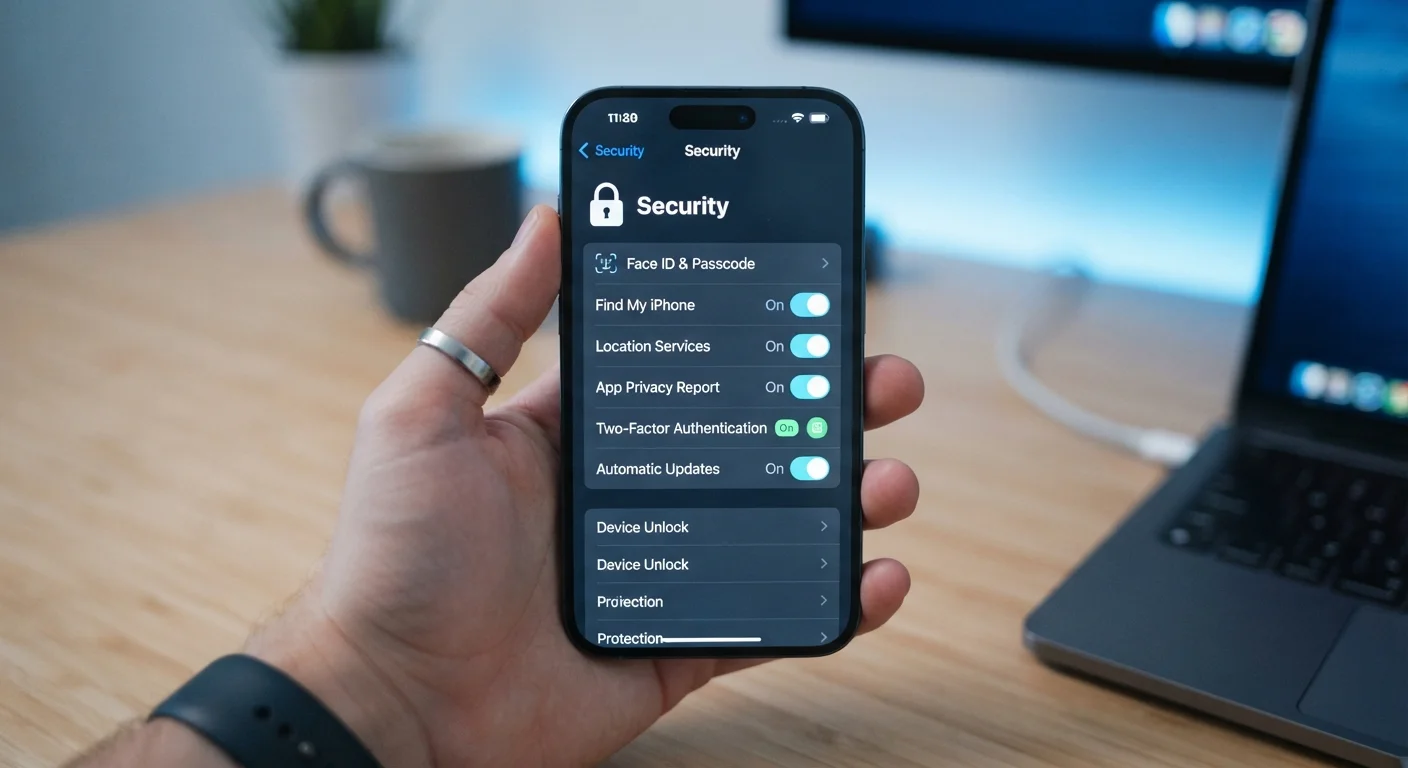
Photo credit: TrendingExperts.net
Two-factor authentication, app permissions, lock screen settings — a curated look at the security features on phones and computers that are easy to miss.
Key Takeaways
- Most phones and computers come with strong security features that are simply turned off by default.
- App permissions can quietly grant access to your camera, microphone, and location without obvious prompts.
- Two-factor authentication is one of the most effective ways to protect your accounts from unauthorized access.
- A strong lock screen setting is your first physical barrier against someone accessing your device.
- Automatic updates patch known security vulnerabilities that attackers actively exploit.
- Reviewing these settings takes under an hour and significantly reduces your exposure to common threats.
The Security Gap Hidden in Plain Sight
When you set up a new phone or laptop, the guided setup wizard walks you through the basics - Wi-Fi, your Apple ID or Google account, maybe Face ID. What it rarely does is help you understand the full range of security settings buried a few menus deeper. Those settings aren't obscure; they just aren't marketed the way new features are.
The result is that millions of devices are running with protective features half-configured or completely switched off. This isn't about paranoia - it's about taking five minutes to close doors you didn't know were open. If you're new to thinking about this broadly, the complete online security starter framework is a solid foundation. The settings below are the specific checkpoints most people skip.
Two-Factor Authentication on Your Core Accounts
Two-factor authentication (2FA) adds a second verification step when you log into an account - typically a code sent to your phone or generated by an authenticator app. Even if someone steals your password, they can't get in without that second factor.
Despite being widely available, 2FA is left disabled on many accounts simply because it wasn't set up at the time of registration and users never went back to turn it on. Check the security settings of your email, bank, and cloud storage accounts first - those are highest priority. For a closer look at how 2FA differs from similar-sounding login protections, see two-factor authentication vs. two-step verification.
A stolen password alone won't unlock your account if two-factor authentication is active.
App Permissions You've Never Reviewed
Every app you install can request access to your device's camera, microphone, contacts, location, and more. Many people tap "Allow" during installation without reading what they're approving - and those permissions stay in place indefinitely.
Both Android and iOS allow you to audit and revoke permissions at any time through Settings > Privacy (iPhone) or Settings > Apps (Android). A flashlight app that requests microphone access, for example, has no legitimate need for it. Pruning unnecessary permissions limits how much data apps can collect about you passively. The article on what app permissions actually grant breaks down each common permission type in plain terms.
Permissions granted at install time stay active until you manually revoke them.
Your Lock Screen Timeout and Strength
A lock screen only protects your device if it engages quickly enough to matter. Many phones are set to a timeout of several minutes - or users have disabled the screen lock entirely for convenience. On a device left on a table or lost in a bag, that window is all someone needs.
Set your auto-lock timeout to 30 seconds or one minute. More importantly, make sure your lock method is strong: a six-digit PIN or biometric (fingerprint or face) is far harder to bypass than a four-digit code or swipe pattern. These settings are typically found under Settings > Display > Screen Timeout and Settings > Security > Screen Lock.
A three-minute screen timeout gives an opportunistic stranger plenty of time to access your device.
Automatic Software and App Updates
Software updates aren't just about new features - they routinely patch security vulnerabilities that attackers are actively exploiting. When a flaw is disclosed publicly, users running outdated software become targets in a narrow and predictable window.
Enable automatic updates for both your operating system and your apps. On iOS, go to Settings > General > Software Update > Automatic Updates. On Android, the path varies by manufacturer but is usually under Settings > Software Update. For app updates specifically, both the App Store and Google Play have auto-update options in their settings menus. The case for staying current is explored further in why keeping apps updated matters more than you'd expect.
Security patches often follow closely behind a public vulnerability disclosure - delayed updates leave a known gap.
Find My Device and Remote Wipe
If your phone is lost or stolen, Find My Device (Android) or Find My (iPhone) allows you to locate it on a map, lock it remotely, or erase all its data before someone else can access it. These features are built into both major mobile platforms but must be enabled in advance - they cannot be activated after the fact.
On iPhone, go to Settings > [Your Name] > Find My > Find My iPhone and switch it on. On Android, go to Settings > Security > Find My Device. Also verify that your device has a Google or Apple account linked, since remote wipe works through that account. This is one setting where the setup window is only open before a problem occurs.
Remote wipe only works if it's been enabled before your device goes missing.
Lock Screen Notification Preview
By default, many phones display the full text of incoming messages, emails, and app alerts directly on the lock screen - visible to anyone standing nearby. A two-factor authentication code, a banking alert, or a personal message can all appear in plain view without the device being unlocked.
You can set your lock screen to show notifications but hide the content until the device is unlocked, or disable previews altogether for specific sensitive apps. On iPhone, go to Settings > Notifications > Show Previews and select "When Unlocked." On Android, the path is Settings > Notifications > Sensitive Notifications or Lock Screen Notifications, depending on your version. This small change meaningfully reduces shoulder-surfing risk in public spaces.
Full message previews on your lock screen can expose sensitive information to anyone nearby.
Making These Changes Without the Overwhelm
None of the settings listed above require technical expertise. Most can be found by searching the word "security" or "privacy" in your device's main settings app. Start with whichever item feels most urgent - even one change is meaningful.
Schedule a 30-Minute Security Review
Set aside half an hour to go through each setting on this list with your device in hand. Work through one item at a time rather than trying to tackle everything at once. If you share a household, consider reviewing these settings on each device - a family member's unsecured phone can sometimes serve as an entry point to shared accounts or home networks. See securing your home network from the router out for the next logical step.
If you share devices with others in your household, these settings are relevant for everyone. Parents setting up devices for younger children should also review content and privacy controls - the tablet setup checklist for young children covers that scenario specifically. For a deeper look at account-level security before a problem occurs, see the guide on locking down your accounts before a breach happens.

Author
Technology Editorial Team
Technology Editorial Team is the collective byline for our editorial team and contributor network. Articles published under this byline or an editorial pen name are researched, written, and reviewed according to our editorial standards for clarity, consistency, and independence before publication.
View all articles →