
Password Managers vs. Saved Browser Passwords: A Security Comparison
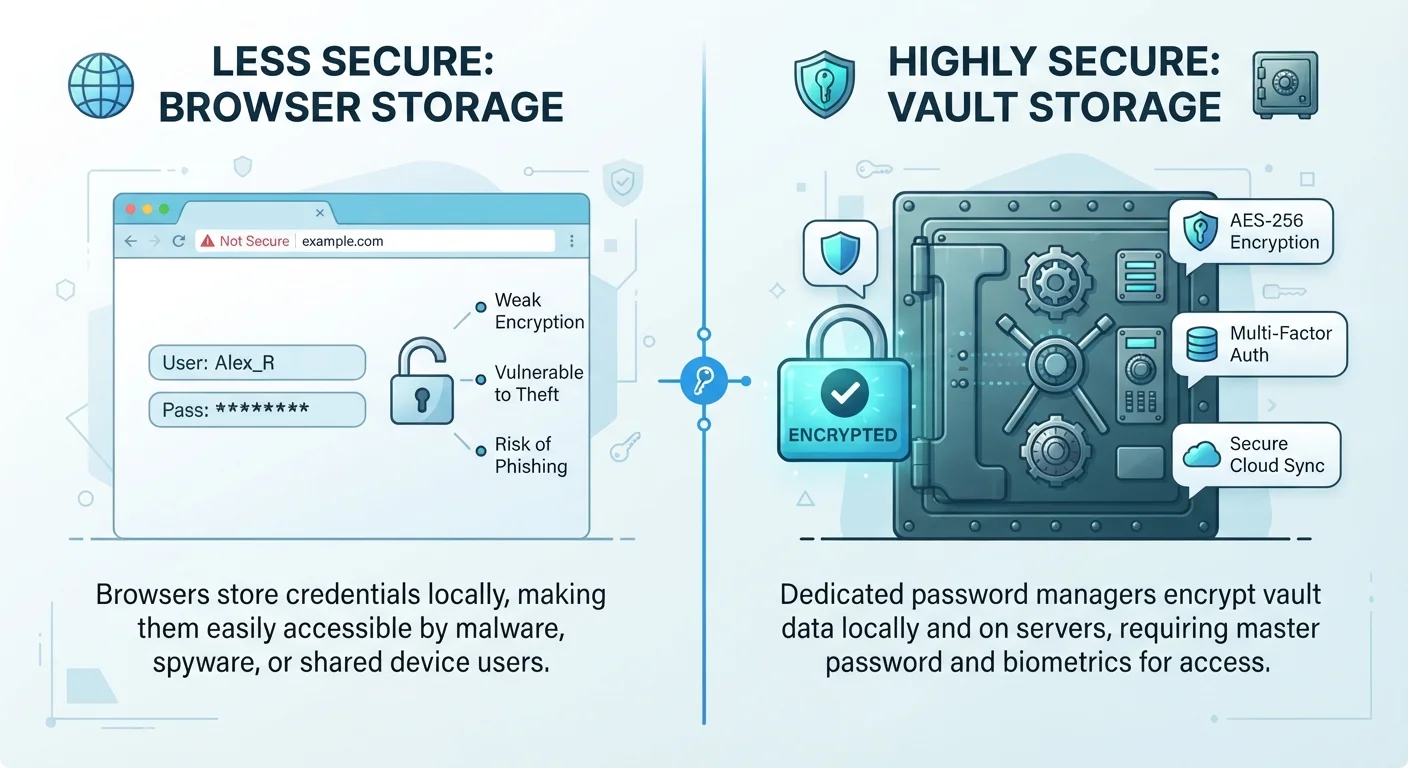
Photo credit: TrendingExperts.net
In this article
Both store your passwords, but they work very differently. See how dedicated password managers stack up against your browser's built-in option.
Key Takeaways
- Dedicated password managers encrypt your data with a master password, offering stronger protection than most browsers provide by default.
- Browser-saved passwords are convenient but often tied to a single browser and may be easier for malware to access.
- Password managers work across different browsers and devices, while browser storage is typically limited to one browser ecosystem.
- Both options are far safer than reusing the same password across multiple websites.
- Advanced features like breach alerts, secure sharing, and two-factor authentication are standard in dedicated managers but vary in browsers.
How Each Approach Works
When you save a password in your browser - Chrome, Firefox, Safari, or Edge - it stores your credentials in a local database tied to your browser profile. Most modern browsers encrypt these stored passwords and may sync them across devices if you're signed into your browser account. It's automatic and requires nothing extra from you.
A dedicated password manager is a separate application - sometimes a standalone app, sometimes a browser extension, often both - that stores all your passwords in an encrypted vault. You unlock that vault with a single master password (a long, memorable passphrase only you know). The app then handles filling in your credentials on any site, in any browser you install it on.
For a broader look at foundational security habits, see our complete online security starter framework.
| Criterion | Dedicated Password Manager | Saved Browser Passwords |
|---|---|---|
| Encryption model | Zero-knowledge, master password required | Tied to device or browser account login |
| Cross-browser support | Works in any browser via extension | Limited to one browser ecosystem |
| Breach monitoring | Standard feature in most managers | Partial; varies by browser |
| Weak password alerts | Yes, with detailed reports | Basic alerts in some browsers |
| Stores non-password data | Yes (notes, keys, cards) | Website logins only |
| Setup effort | Requires installation and configuration | Automatic, no setup needed |
| Cost | Free tiers exist; premium plans available | Free, built into the browser |
Security: Where the Real Differences Lie
The biggest gap between these two options isn't convenience - it's how each handles your data under threat.
Encryption and access control: Dedicated password managers are designed around a zero-knowledge model, meaning the service never has access to your master password or decrypted vault. Your data is encrypted on your device before it ever reaches any server. Browser-saved passwords are encrypted too, but the encryption is typically tied to your device login or browser account - if someone gains access to your computer profile, they may be able to export saved browser passwords with little friction.
Malware exposure: Some types of malware are specifically designed to harvest saved browser passwords from local storage. Because browser credential databases are predictably located on a device, they can be a higher-value target. Dedicated managers add an extra layer by requiring the master password to decrypt anything.
Breach alerts and password health: Most dedicated managers actively monitor known data breaches and alert you when one of your stored credentials appears in a breach database. They also flag reused or weak passwords. Browser tools have started adding similar features, but coverage and reliability vary considerably by browser.
80%+
Data breaches involving weak or reused passwords
Verizon's Data Breach Investigations Reports have consistently found that a large majority of hacking-related breaches involve compromised credentials.
~33%
U.S. adults who use a password manager
A 2023 Pew Research Center survey found roughly one-third of American adults reported using a password manager to store their passwords.
To understand the trade-offs involved before committing to a dedicated manager, our article on password manager trade-offs offers an honest assessment.
Convenience, Compatibility, and Cross-Device Use
Browser password saving wins on sheer ease: there's nothing to install, no extra subscription to consider, and it works invisibly in the background. If you live inside one browser ecosystem - say, Chrome on an Android phone and a Windows laptop - syncing is seamless.
The friction shows up the moment you step outside that ecosystem. If a colleague sends you a link that opens in a different browser, or you switch from Chrome to Safari, your saved passwords don't follow you. Dedicated password managers install as extensions across all major browsers and often include mobile apps, so your vault is always within reach regardless of which browser you're using.
Password managers also let you securely store more than just passwords - software license keys, Wi-Fi credentials, and secure notes are common features. Browser storage is strictly for website logins.
For context on how browser extensions fit into the larger picture, see our guide to browser extensions and privacy risks.
Both Options Beat Password Reuse
Whether you use a dedicated password manager or your browser's built-in tool, either is significantly better than reusing the same password across multiple sites. Reused passwords mean a single breach can expose dozens of accounts at once. Start with unique passwords everywhere, then evaluate which storage method fits your needs.
Whatever method you choose, making sure your accounts have strong, unique passwords is the first priority. Our checklist on locking down your accounts before a breach walks through the key steps.

Author
Technology Editorial Team
Technology Editorial Team is the collective byline for our editorial team and contributor network. Articles published under this byline or an editorial pen name are researched, written, and reviewed according to our editorial standards for clarity, consistency, and independence before publication.
View all articles →