
Getting Started With Productivity Apps: A First-Timer's Orientation
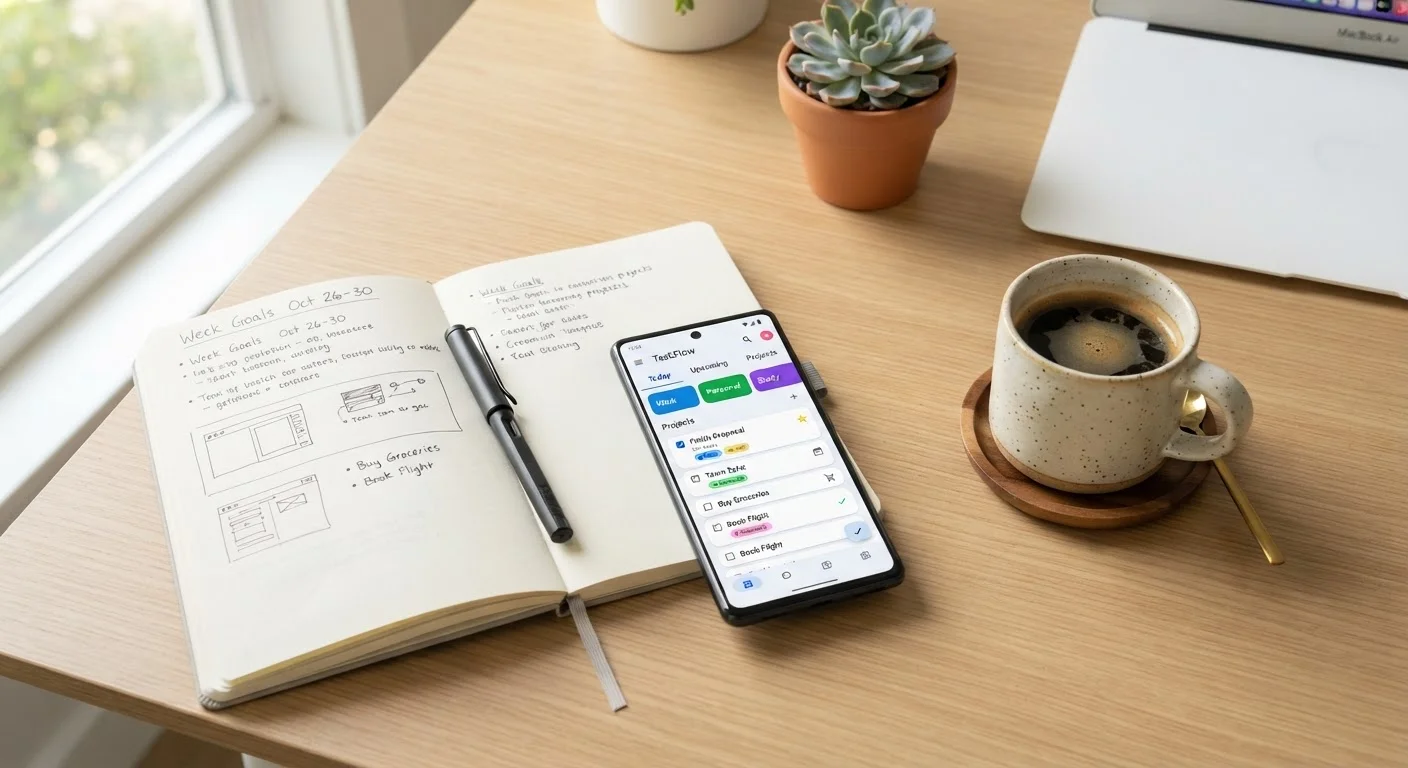
Photo credit: TrendingExperts.net
In this article
Task managers, note apps, calendars — the options are overwhelming at first. This guide helps beginners understand the categories and find a starting point.
Key Takeaways
- Productivity apps fall into four main categories: task managers, note-taking, calendars, and time trackers.
- Starting with one app that solves a specific pain point is more effective than adopting a full system at once.
- Most productivity apps offer free tiers that are sufficient for beginners to evaluate before committing.
- The best app is the one you'll actually open and use consistently every day.
- Cross-device sync is a key feature to look for so your information is accessible wherever you are.
Why Productivity Apps Feel Overwhelming at First
Open any app store and search for "productivity" - you'll immediately find hundreds of options, each promising to transform how you work. For someone new to these tools, the sheer volume of choices can feel paralyzing. That's a completely normal reaction, and it doesn't mean you're bad with technology.
The overwhelm usually comes from two sources: not knowing what problem you're actually trying to solve, and assuming you need a complex system from day one. In reality, productivity apps are designed to handle specific, everyday challenges - keeping track of tasks, storing notes, managing your schedule, or understanding where your time goes. Once you understand the categories, the landscape becomes much clearer.
Think of it the same way you'd approach building any new habit. Just as a first grooming routine works best when you start simple and build gradually, a productivity setup works best when it begins with one focused tool rather than an entire system at once.
Task manager
An app that lets you create, organize, and check off to-do items, often with due dates and reminders attached.
Cross-device sync
A feature that automatically keeps your data - tasks, notes, calendar events - updated and identical across your phone, tablet, and computer.
Free tier
A no-cost version of an app that includes core features, allowing you to try it before deciding whether to pay for additional capabilities.
Workflow
The personal sequence of steps you follow to get things done - for example, how you capture tasks, prioritize them, and mark them complete.
Onboarding
The initial setup experience an app walks you through when you use it for the first time, typically designed to get you to your first useful action quickly.
The Four Core Categories of Productivity Apps
Most productivity apps fall into one of four categories. Understanding each helps you identify which one you actually need.
Task Managers
These apps let you create to-do lists, set due dates, and organize tasks by project or priority. They're ideal if your biggest struggle is remembering what you need to do or feeling like things fall through the cracks. Look for features like reminders, recurring tasks, and simple list views.
Note-Taking Apps
Note-taking apps go beyond basic text. They let you capture ideas, save web clips, organize research, and search everything later. If you frequently jot things on scraps of paper or lose track of information, a note-taking app is likely your starting point.
Calendar Apps
Calendar apps help you schedule time blocks for meetings, appointments, and focused work. Unlike task managers, they anchor things to specific times. Most smartphones come with a built-in calendar app that's already quite capable - many beginners overlook this entirely.
Time Tracking Apps
These apps record how you actually spend your time throughout the day. They're less about planning and more about awareness - useful once you've built a basic system and want to understand your real work patterns.
Start With What You Already Have
Before downloading anything new, check what's already on your phone. Most smartphones come with a notes app, a reminders or tasks app, and a calendar - all of which sync across devices. Spending a week with built-in tools helps you identify what's missing before you go looking for something more specialized.
How to Choose Your First App
Rather than researching every available option, identify your single biggest frustration. Ask yourself: Do I forget tasks? Do I lose notes and ideas? Do I miss appointments? Do I have no idea where my time goes? Your answer points directly to the category you should start with.
Once you've picked a category, look for these practical features:
- Cross-device sync - Your data should be available on your phone and computer automatically.
- Simple onboarding - If you need a tutorial just to enter your first task, the app may be too complex for a starting point.
- A usable free tier - You shouldn't need to pay before you've confirmed the app fits your style.
- Reliable search - Being able to find anything quickly is more valuable than an elaborate folder structure.
When evaluating any new digital tool, the principles in our beginner's guide to evaluating products can help you cut through marketing language and focus on what genuinely matters to your situation.
Building a Simple Productivity System That Sticks
A productivity system doesn't have to be elaborate. For most beginners, a two-part setup covers almost everything: a task manager for things to do, and a calendar for when to do them. Add a note-taking app only when you feel the need to capture more than just tasks.
The key to making any system stick is consistency over perfection. Open your chosen app at the same time each day - morning works well for many people - and spend five minutes reviewing what's on your list. Don't aim for an empty inbox or a flawless color-coded system. Aim for the habit of checking in.
Productivity apps are especially useful when life gets busier. If you're navigating a job search, for example, a task manager paired with a calendar can help you track applications and deadlines without things slipping. Our guide to your first week of job searching shows how structure and follow-through work together in a real-world scenario.
Give any app a genuine two-week trial before deciding it's not for you. Most people who abandon productivity apps do so in the first few days, before they've had time to build a real feel for the tool. Two weeks of consistent use gives you enough experience to make a fair judgment.
Getting Things Done (GTD) Method Overview
A widely recognized productivity framework that explains how to capture, organize, and act on tasks systematically. Understanding the methodology helps you configure any app more intentionally.
Pomodoro Technique Timer
A simple time-management tool based on focused 25-minute work intervals with short breaks. Useful alongside any task manager to build concentration and reduce procrastination.
Digital Wellness Checkup Template
A self-assessment template to help you reflect on how you currently spend time on devices and identify where a productivity app could make the biggest difference.
Frequently Asked Questions

Author
Technology Editorial Team
Technology Editorial Team is the collective byline for our editorial team and contributor network. Articles published under this byline or an editorial pen name are researched, written, and reviewed according to our editorial standards for clarity, consistency, and independence before publication.
View all articles →